Truss
ty
Introduction
Welcome to the Trussty App documentation, a tool engineered to simplify and enhance the process of solving and optimizing trusses. This application has been developed with a focus on providing engineers and architects with a user-friendly platform for efficient truss design and analysis. Through a thoughtful combination of powerful algorithms and intuitive interfaces, the app allows users to explore a wide range of features tailored to address the complexities of truss engineering. Whether working on residential, commercial, or industrial projects, this documentation will guide you through the various capabilities and functionalities, empowering you to effortlessly navigate and optimize your truss designs. Enjoy this streamlined and effective approach to truss analysis with the Trussty.
Download
Account Creation: Begin by creating a user account on our platform, providing the necessary details to establish a secure and personalized connection.
License Acquisition: Navigate to the "Get a License" page, where you can carefully choose the licenses that best suit your requirements for optimal access to our advanced features.
License Selection: Select the specific licenses you wish to procure, ensuring a tailored approach to meeting your unique professional or project needs.
Nicknaming Licenses: Enhance organizational clarity by assigning distinctive nicknames to your licenses, facilitating future identification and management with ease.
Trussty App Download: Download the Trussty App from our platform.
License Activation: Access your account page on our website to retrieve the unique license key associated with your purchased licenses. Enter this key into the Trussty App to activate and unlock the full potential of your selected licenses.
Completion: Congratulations, you have successfully completed the setup process. You are now ready to harness the power of our Trussty App for efficient truss analysis and optimization in your professional endeavors.
The Layout
Start Page: Upon opening the Trussty GUI, you will be presented with the start page.
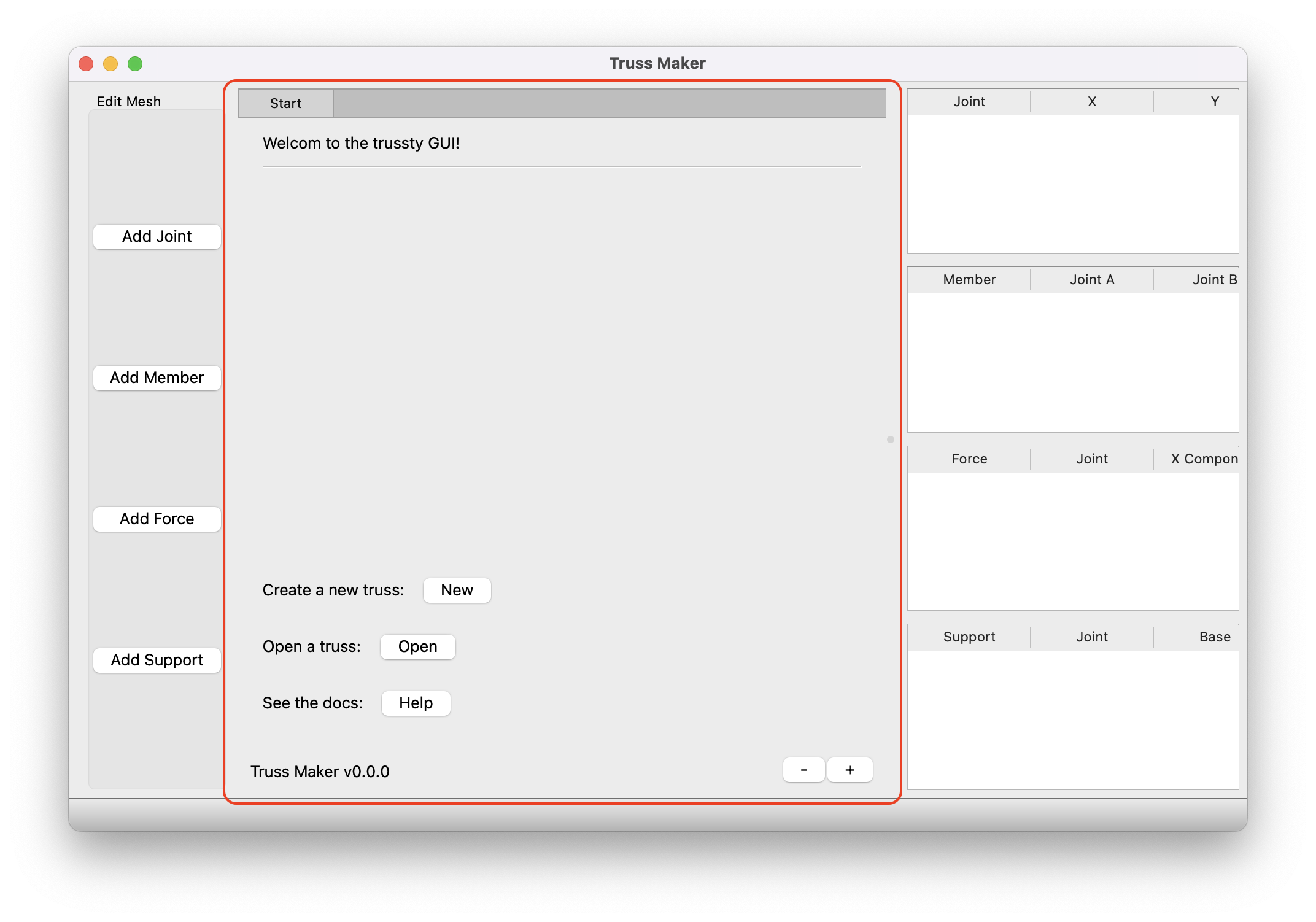
This can be closed by closing the tab or brought back at any time via File>Open Recent>Start.
Truss Editor Panel: On the very left of the application window is truss editor panel.
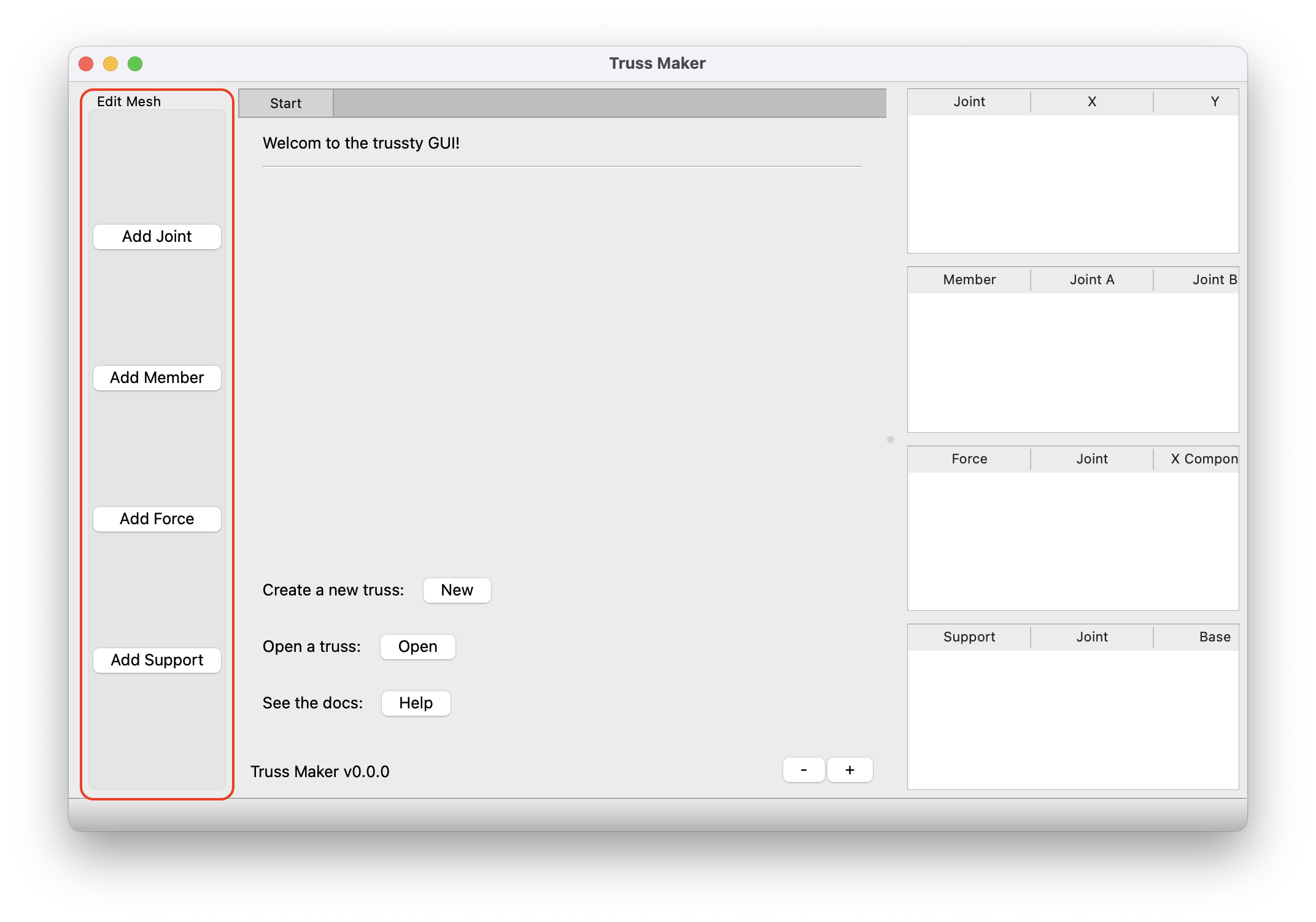
This is the main method for adding truss elements.
Info Tables: On the very right of the application window is the truss info tables.
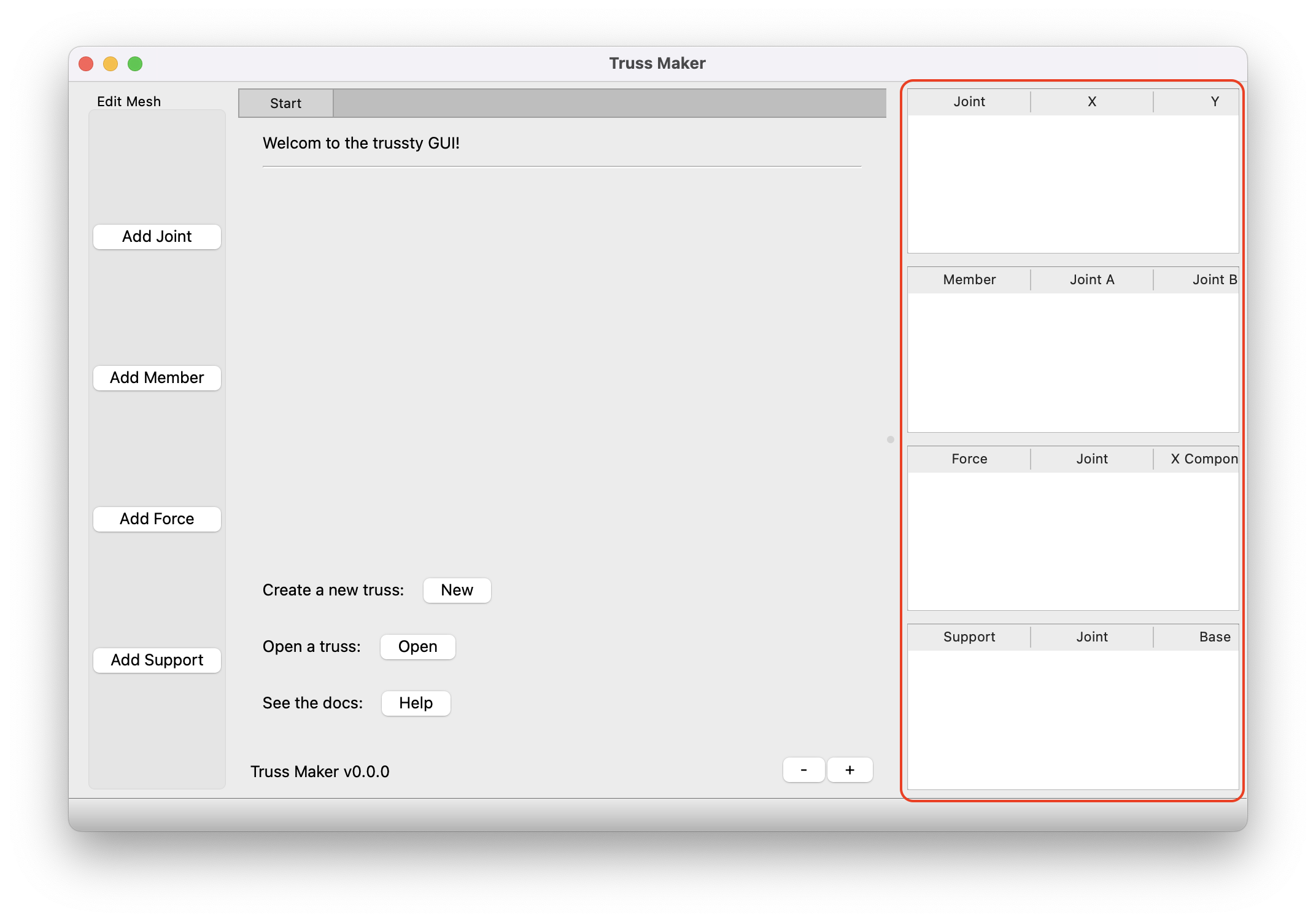
This is a quick way to specify exact coordinates for joints and view truss elements in a tabular view.
Truss View: In the very center of the application window is the truss view.
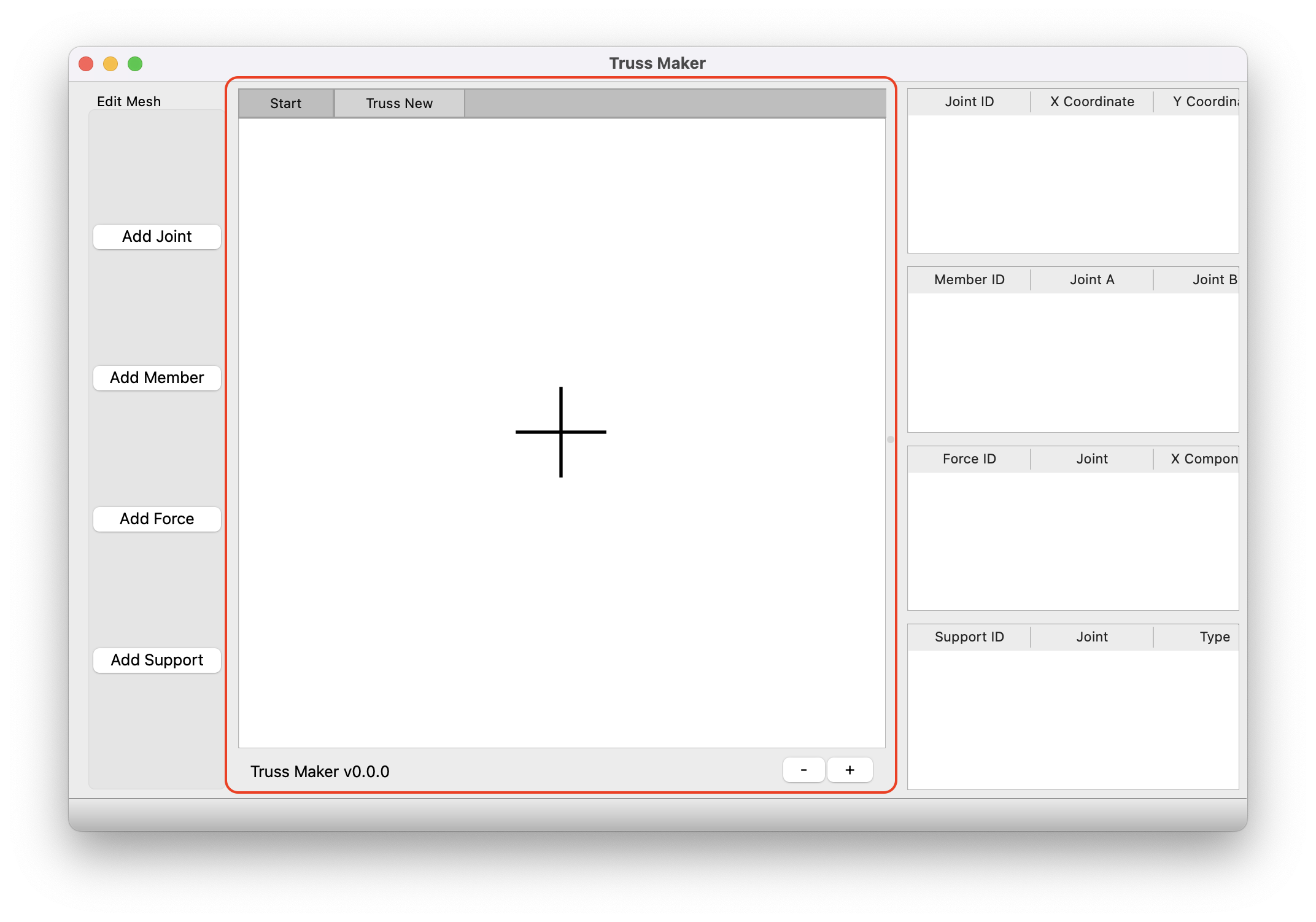
This is the where you will see a preview of the truss being built, the origin is marked with to crossing black lines.